


Tutorial · Architect 3D 26 for Windows
Learn to move around your house in 2D and 3D with the mouse
Updated · About 4 minutes
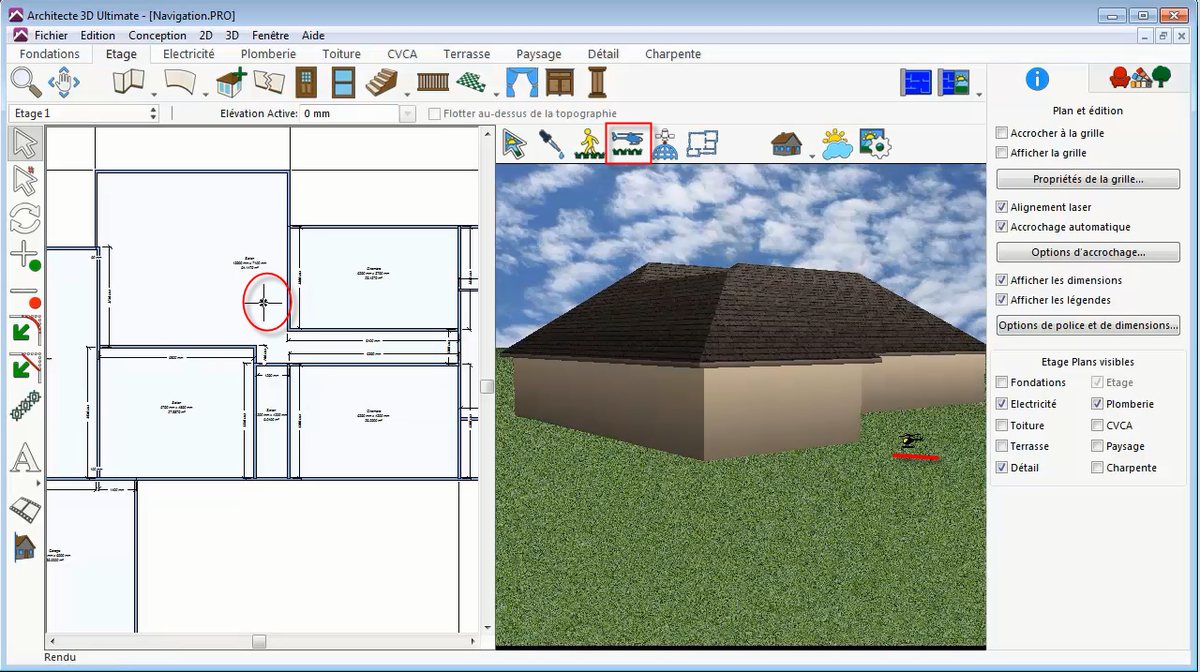
Written for Architect 3D 26 for Windows. The Mac edition has similar tools, though some menu names differ.
Architect 3D has two 2D navigation tools, Zoom and Pan, to move around your plan, and two 3D tools, Animated Fly-Around and Animated Walk-Through, to explore your house from outside and inside.
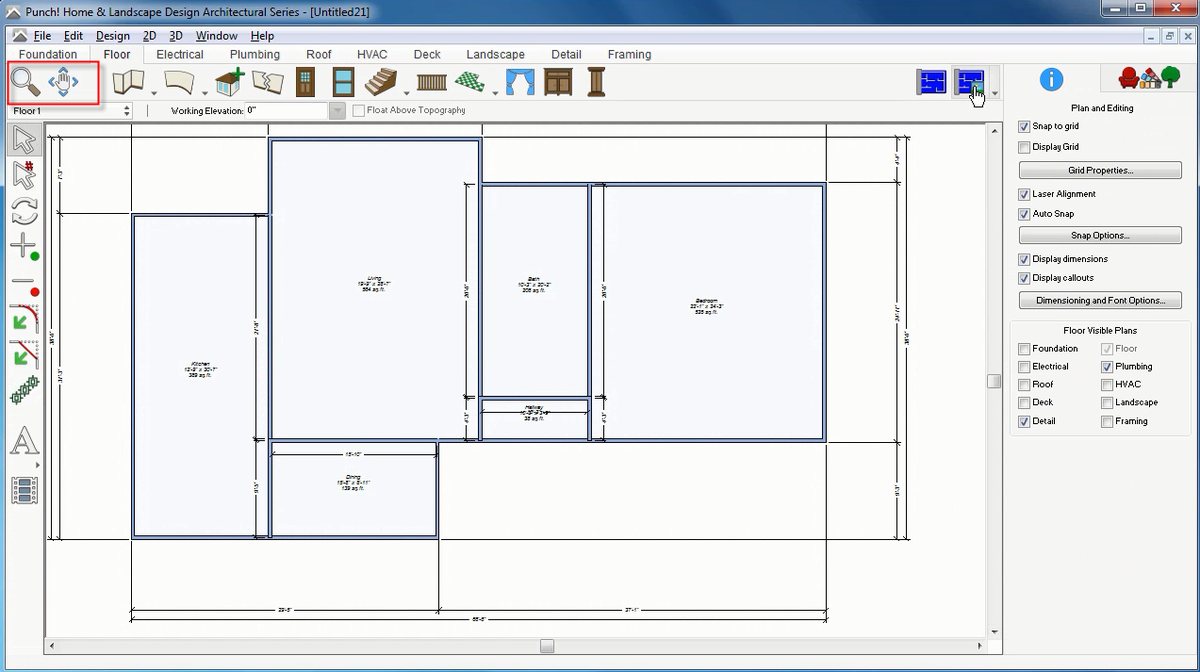
Step 1: Zoom in and out on the plan
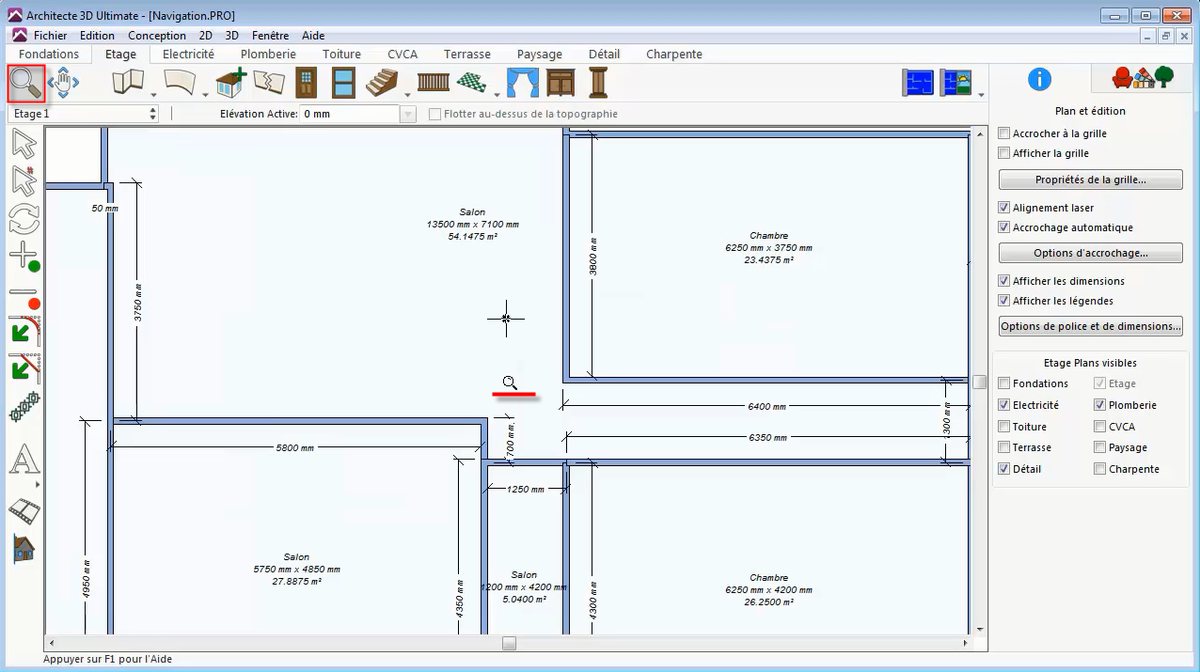
- Click the Zoom tool. The pointer becomes a magnifying glass.
- Hold down the left mouse button on the plan and drag up to zoom in, or down to zoom out.
The point under the pointer becomes the centre of the view, so place it over the part of the plan you want to see. The mouse wheel zooms too. Press Ctrl+F to fit the whole design in the window.
Step 2: Pan across the plan
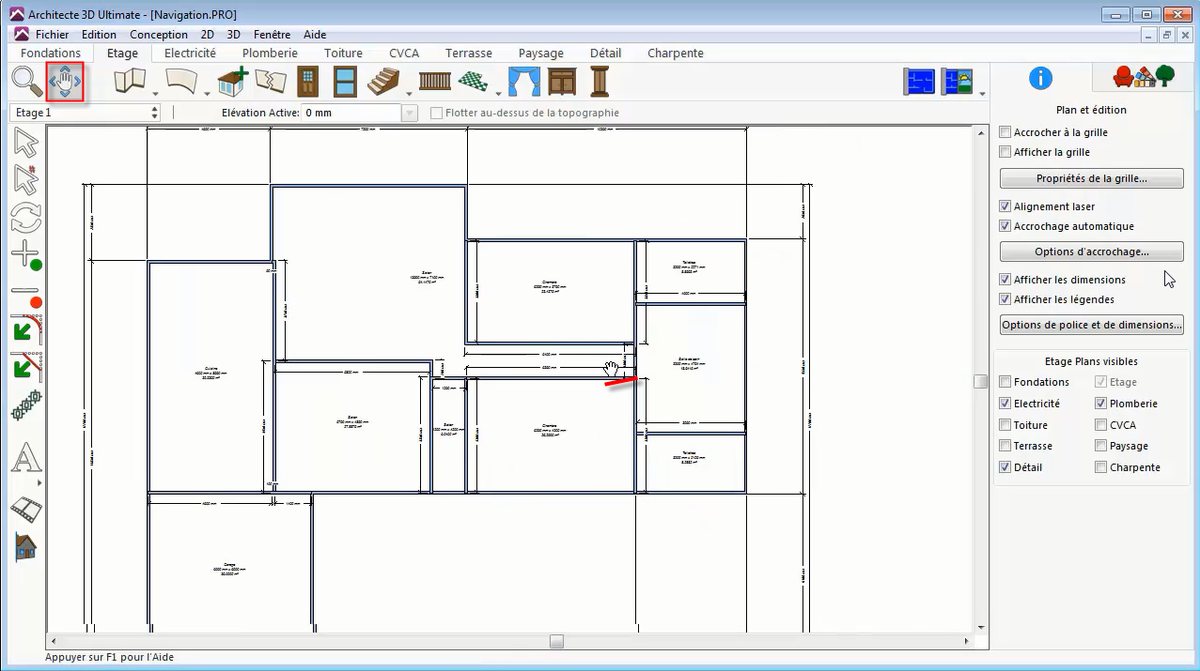
- Click the Pan tool. The pointer becomes a hand.
- Hold down the left mouse button and drag the plan in any direction.
Pan keeps the same zoom level, so you can work on different areas of the plan without zooming out.
Step 3: Fly around your house
- Click Animated Fly-Around.
- Hold down the right mouse button and drag forward to move closer. Hold down the left button and drag left or right to circle the house.
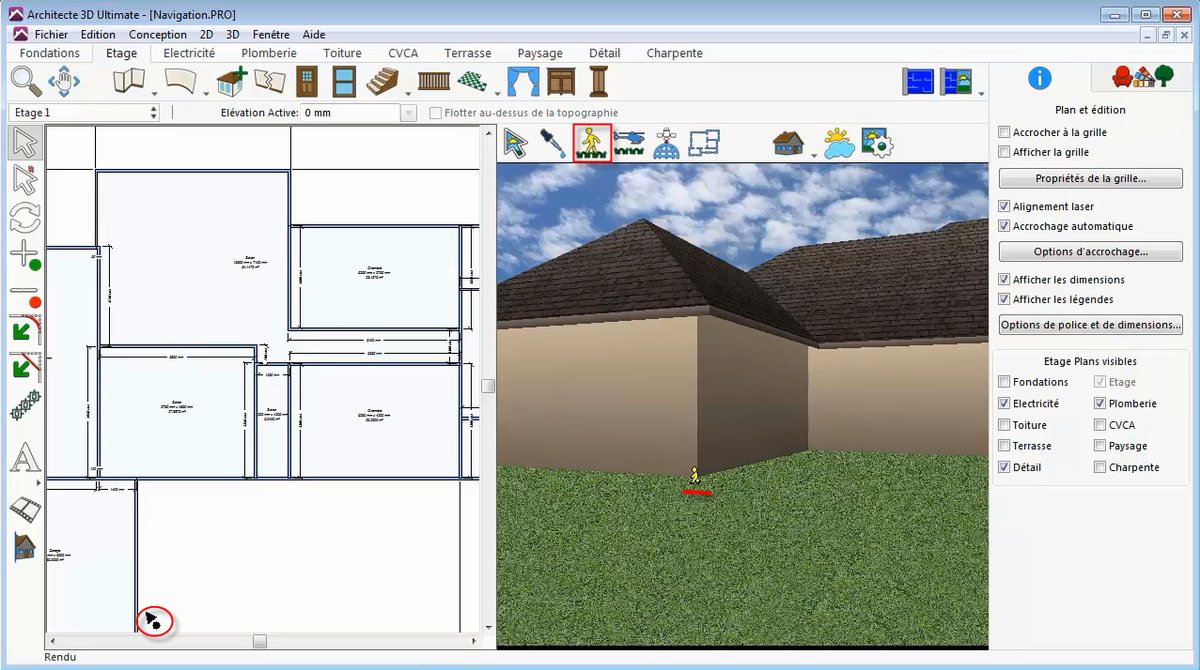
You can also steer from the 2D view: click on the plan to set where you start, then move the arrow pointer to change direction.
Step 4: Walk through the rooms
- Click Animated Walk-Through.
- Hold down the left mouse button and move the mouse to walk from room to room. Hold down the right button and drag up or down to move vertically.
Step 5: Adjust the 3D speed
If the 3D view moves too fast or too slowly, open Design > Options and, under 3D Preferences, choose Navigation and Rendering Quality. Move the navigation slider to suit you.